

Apps with Composio
Connect Gmail, Google Calendar, Drive, Sheets, Docs, Slack and many other apps from Apps. nod uses Composio for these connections.
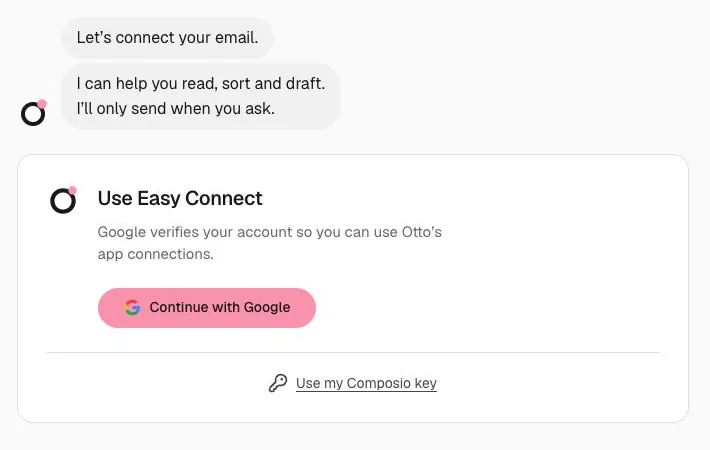
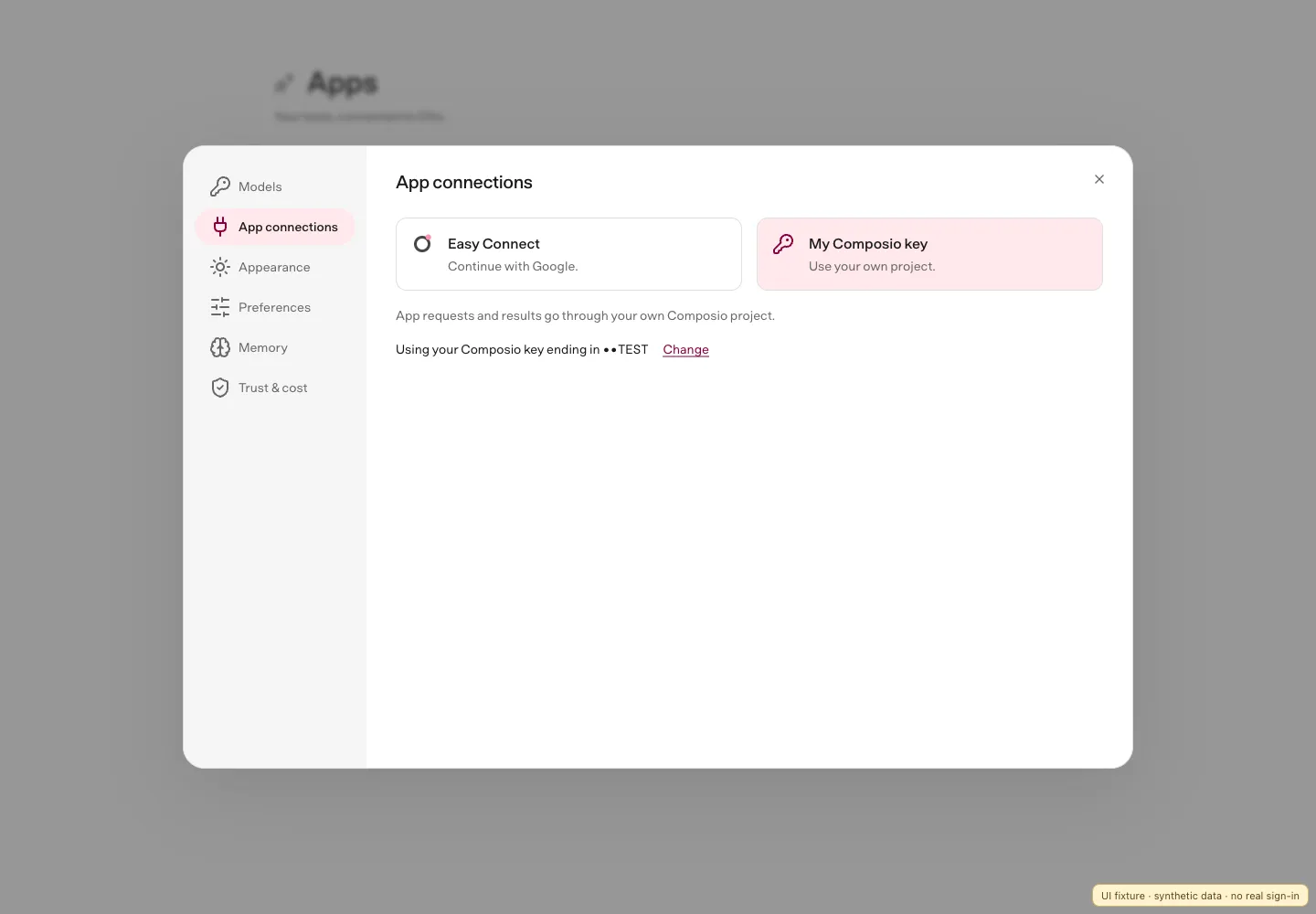
Choose Easy Connect and sign in with an allowed Google account, or use your own Composio key. Both choices work in the desktop app and source installs, during setup and in Settings → App connections. Easy Connect uses n8n's hosted service and doesn't need your own Composio account.
Google sign-in enables Easy Connect only. It doesn't give nod access to Gmail or another app. You connect each app separately and choose its permissions. Easy Connect accepts explicitly allowed email addresses or verified Google Workspace accounts from an allowed domain. An individual email can still be blocked. If yours isn't enabled, you can use a personal key; there is no waitlist.
During onboarding, choose Continue with Google, or Use my Composio key and Save key. The Gmail connection appears once that setup is ready. Select Connect Gmail and choose an inbox; its email appears after Gmail connects. Change lets you use another setup method. You can also manage access later in Settings → App connections.
Composio handles each app's sign-in and runs the app actions. nod's server checks every action before it reaches Composio. With nod's connection, app requests and results pass through n8n's hosted connection service and Composio. With your own key, they go through your Composio project. Notion and Linear connect through their own MCP servers. See MCP servers, APIs and CLIs.
flowchart TD
  nod[nod plans<br/>an app action] --> trust{{Trust check}}:::accent
  trust -- allowed --> server[nod server]
  trust -. held .-> you([You approve]):::accent
  you -. yes .-> server
  server -- nod's connection --> connection[n8n connection service]
  connection --> composio[Composio]
  server -. your own key .-> composio
  composio --> apps[Gmail · Calendar<br/>Slack · more]
Connect your apps
Section titled “Connect your apps”- Set up Easy Connect or My Composio key in Settings → App connections, then open Apps, find an app and select Connect.
- Sign in on the app's consent screen and choose what nod can access. Google's sign-in screen usually shows Composio, the service that connects the app, rather than nod. If your own Composio project uses a custom Google auth config, it shows that config's app name instead.
- Return to nod when the app is connected.
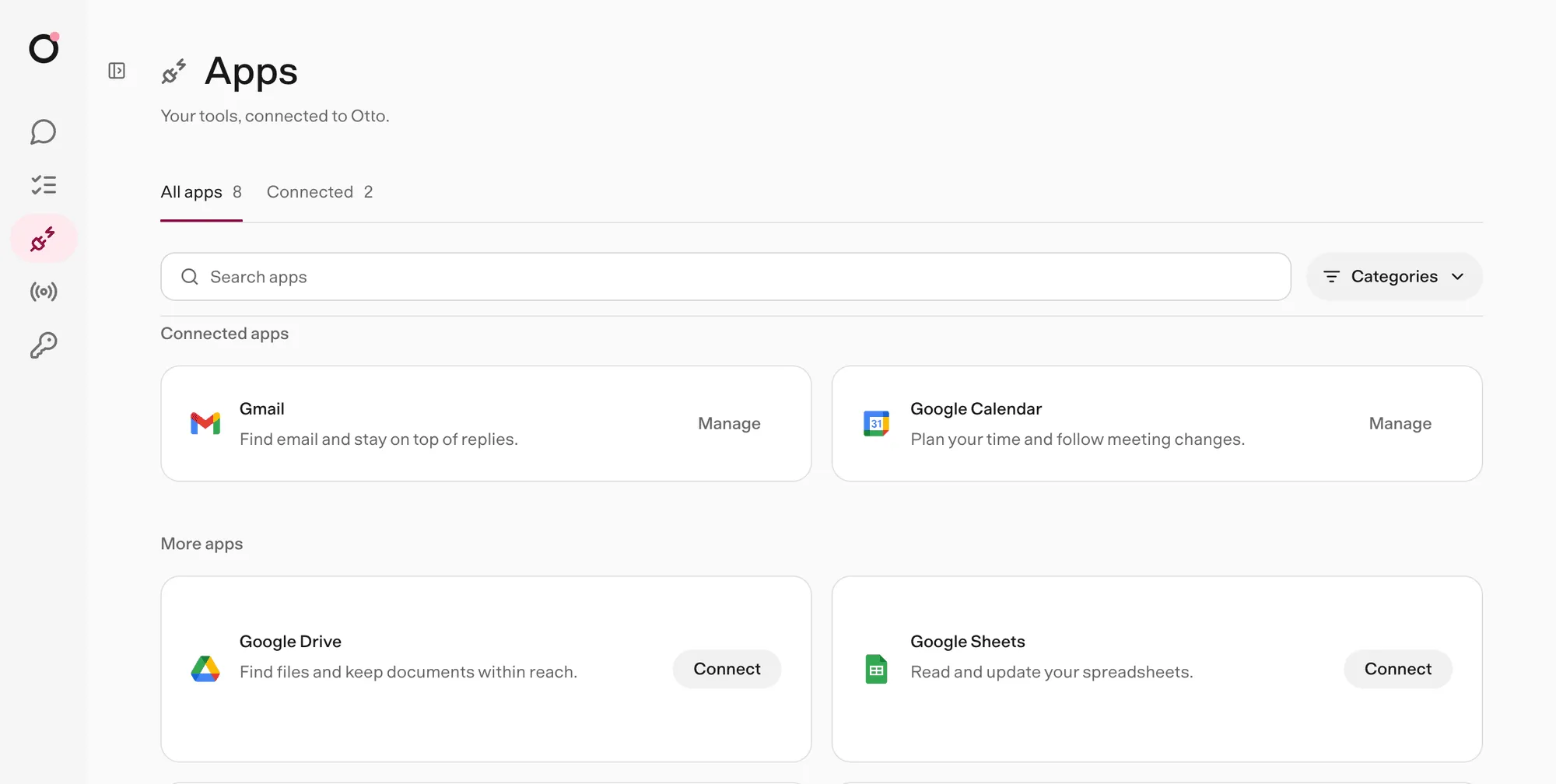
You can also ask nod in chat. It searches the same catalog, then sends you a private link to connect, which shows as a connect button in nod.
Renew or remove Easy Connect access
Section titled “Renew or remove Easy Connect access”Your installation stays admitted while its email is allowed, including for background app tasks. New app consent also needs a recent Google browser session. If that session expires while connecting an app, nod asks you to sign in with Google, then connect the app again. This keeps your current project and connected accounts.
Removing Easy Connect access blocks managed requests from this installation. It doesn't delete connected accounts or revoke the permissions you gave each provider. Disconnect apps first if you also want to remove those grants.
Automatic app updates
Section titled “Automatic app updates”nod checks Gmail for new mail while it's running. nod's connection doesn't receive app webhooks, so apps such as Calendar and Slack don't wake nod automatically. You can still ask nod to work with them.
Source/server installs using their own Composio project can configure webhooks with COMPOSIO_WEBHOOK_SECRET.
Use your own Composio project
Section titled “Use your own Composio project”Choose My Composio key during setup or in Settings → App connections, and paste a project key from the steps below. How to get a key, under the key field, shows the same steps in nod. nod checks the key before saving it, stores it encrypted on your installation and only shows its last four characters. App consent then uses your project.
The desktop app uses OS-protected storage. A local web install uses the macOS Keychain or a private per-profile key file on Linux. Other server configurations need an operator-provided Vault key. If encrypted data already exists but its key is missing, restore the original key; nod won't replace it. See Configuration.
Signing in with Google while you use a personal key doesn't switch projects. nod first verifies access, then asks you to confirm the switch. A denied or cancelled sign-in leaves your key and apps unchanged.
Connected accounts belong to the project they were connected through, and nod never moves them between projects. When you switch between nod's connection and your own key, nod disconnects the apps connected through the one you're leaving, then switches. Connect them again afterwards. A sign-in you started before switching won't connect, so start it again too. If nod can't disconnect an app, it keeps your current connection so you can try again. Apps it already disconnected stay disconnected.
If Easy Connect access has been removed or requires sign-in, you can still switch to a valid personal key. nod removes the old connections from this installation, but can't revoke their provider permissions through the proxy. Remove those permissions in each provider's settings if needed. A network outage doesn't allow this fallback.
On a source/server install you can instead set COMPOSIO_API_KEY in the server environment or .env, then restart nod. This pins the server to that project, so the app doesn't offer the choice. The desktop app ignores COMPOSIO_API_KEY.
Create a project key
Section titled “Create a project key”- In the Composio Dashboard, open Platform → your project → Settings → API Keys.
- Select Create API Key and create a scoped project key with the permissions in the table below. Read-only access isn't enough, because nod creates sessions, opens sign-in links and runs app actions.
- Leave Tools, Triggers, Webhooks, Observability, MCP (Legacy) and Tool execution (Legacy) at No access.
- Copy the key.
| Permission area | Access | nod uses it to |
|---|---|---|
| Connected accounts | Read and write | Check connections and disconnect accounts |
| Session management | Read and write | Create and delete sessions, and open sign-in links |
| Session tool execution | Write only | Find app actions, load their details and run them |
| Toolkits | Read only | List the apps you can connect |
| Auth configs | Read only | Find your project's apps and select their sign-in configuration |
| Proxy execute (Legacy) | Write only | Read account identity, check Gmail updates and fetch sign-in emails |
If you set COMPOSIO_WEBHOOK_SECRET for automatic app updates, also grant Triggers → Read and write.
See Composio's project key permissions for the API operations each permission allows.
Keep using a key from the same project. Your connected accounts belong to that project, so a key from another project can't use them.
With your own key, the catalog lists Composio apps with managed sign-in, dynamic OAuth registration, or an eligible custom auth config in your project.
Loading the full catalog needs Toolkits → Read and Auth configs → Read. Missing catalog access doesn't remove existing connections.
Control what each app can access
Section titled “Control what each app can access”The app's consent screen decides what nod can read or change in your account.
If you use your own Composio project, two things control access:
- The key's permissions decide what nod can do in Composio.
- The app's consent screen decides what nod can read or change in your account. The Composio auth config sets which scopes it asks for.
To narrow an app's scopes, change them in its auth config, then reconnect the account. Changing the key doesn't change what you agreed to on the consent screen. See Composio's Controlling scopes.
To choose an auth config for your own project, set COMPOSIO_<APP>_AUTH_CONFIG_ID in the server environment. See Configuration for the supported settings. These settings don't change nod's connection or the Notion and Linear MCP connections.
How nod picks an auth config
When you use your own Composio key, an explicit COMPOSIO_<APP>_AUTH_CONFIG_ID setting takes precedence for supported apps. Otherwise, nod checks your project's enabled custom configs for the app. It checks across Composio's supported authentication methods, including OAuth and API keys.
nod uses the one config that's also enabled for Tool Router. If several qualify, or enabled custom configs exist but none qualifies, connection stops with a configuration error. Select a config through a supported server setting, or update your configs in Composio and try again.
If no enabled custom config exists, Composio's default applies. nod reads existing configs. It doesn't create OAuth apps or change your configurations.
An app with an eligible custom config also appears in Apps, even when Composio doesn't offer managed sign-in for it.
How Easy Connect picks an auth config
Easy Connect uses the broker's native toolkit catalog. It does not discover your project's custom configs or expose auth-config administration to a nod installation. The broker selects the configuration after checking browser and installation ownership. The app never sends auth-config IDs to the broker. When reconnecting, it sends the connected account ID; the broker verifies that account belongs to the installation and retains its original configuration.
Operators can set the Worker's AUTH_CONFIGS_JSON to a toolkit-to-config mapping, such as {"gmail":"ac_example"}. Every ID must belong to the broker's Composio project, selected by its server-side COMPOSIO_API_KEY. A config from a personal-key project or another hosted project cannot be reused here.
With an empty mapping, the broker reuses or creates an enabled Composio-managed config for supported native OAuth apps, or a supported dynamic-registration config that needs no operator inputs. It does not automatically select existing custom OAuth configs. To use your own app branding and scopes, prepare the intended custom configs in the broker's project and configure their IDs on the Worker.
When an action needs a missing permission
Section titled “When an action needs a missing permission”nod is instructed to explain the blocked action, preserve prepared work, and compare supported recovery options that meet your choices. It asks before changing the requested result, method or account unless you already chose that recovery path.
For OAuth connections using a Composio auth configuration, reconnecting with an unchanged configuration cannot add a permission that configuration doesn't request. If the scope is missing there, your Composio project administrator or the Easy Connect operator must update the configuration before you reconnect. Slack canvas creation requires canvases:write, in the auth config's user_scopes for the Slack toolkit.
Every action goes through the trust check
Section titled “Every action goes through the trust check”Reads and drafts run directly. Any other action runs directly only when it's part of what you asked for, or what a schedule's instruction or your standing instruction asks. Otherwise nod asks you first. See Approvals and the trust check.
nod changes your apps only as far as you ask. Ask what needs a reply and it tells you and offers to draft one; ask it to handle an email and it prepares the draft. Background work drafts by default and does more only as your standing instruction says.